3 Preparing for the challenge
We recommend that all students practise before taking part in the challenge.
3.1. Practice Challenges
Practice challenges are available on the UK Bebras website under the Challenges menu.
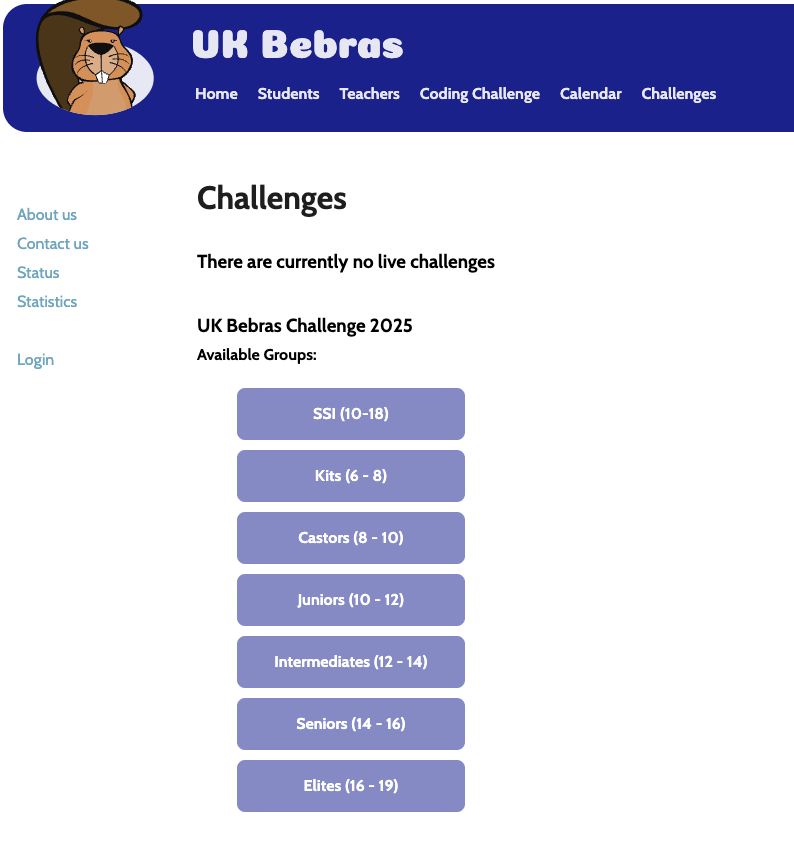
Students can access these without needing an account. These are past challenges that have been put into review mode so that students can see answers and explanations for each task.
3.2 Quiz Feature
You can create quizzes to help your students practise and prepare for the UK Bebras Challenge. Quizzes can be created using a selection of past questions or by selecting a previous challenge.
Students do not need accounts to take quizzes. Instead they are allocated a Quiz Access Code so they can sign back in to see their results once the quiz is graded.
The quiz feature uses past Bebras challenge questions to prepare students for a live challenge. Examples of how these could be used:
Creating a new quiz
- Go to the Quizzes menu.
- If your school has made a quiz previously, these will be listed.
- You can then search by name, created by or Age/Difficulty.
- Click the New button at the bottom of the screen to start creating a new quiz.
- Give your quiz a meaningful name (it can be edited later) and then choose to either start with a blank quiz or select to create a quiz from a previous challenge.
- Click the Create button.
Adding questions to a quiz
- Make sure that you have selected the questions tab.
- If it is an existing quiz you will see a list of questions. If the quiz does not yet have any questions, you will see a message saying "No questions found."
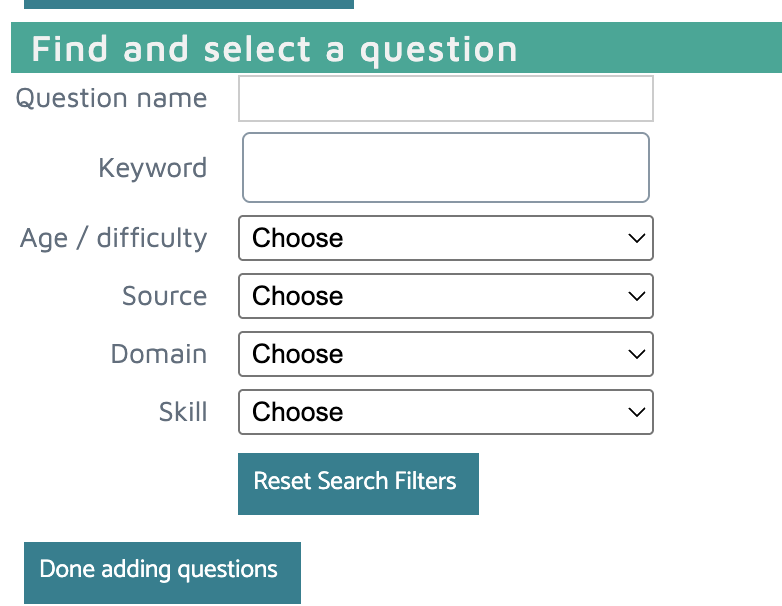
- Click the Add question button. A set of filters will be displayed to help you to find a question to add to your quiz. You can search by:
- Question name
- Keyword – Some questions have keywords such as AI or data structures.
- Age/Difficulty - Choose from a specific age group
- Source - We have questions available from various challenges.
- Domain - This refers to the Computing category of a question.
- Skill – This refers to the computational thinking skill associated with the question.
- Before selecting a question, you can choose to preview the question. This will open the question in a new tab.
- When you are happy with the question, click Select. The question will then appear at the top of the page.
- If you want to rearrange the order of questions, simply drag the question you want to move up or down the list.
- When you have added all the questions you want, click the Done adding questions button (this button will then become an Add question button).
Quiz settings
After selecting a set of questions, you can then choose the settings.
Click the Settings tab in the Quiz editor.
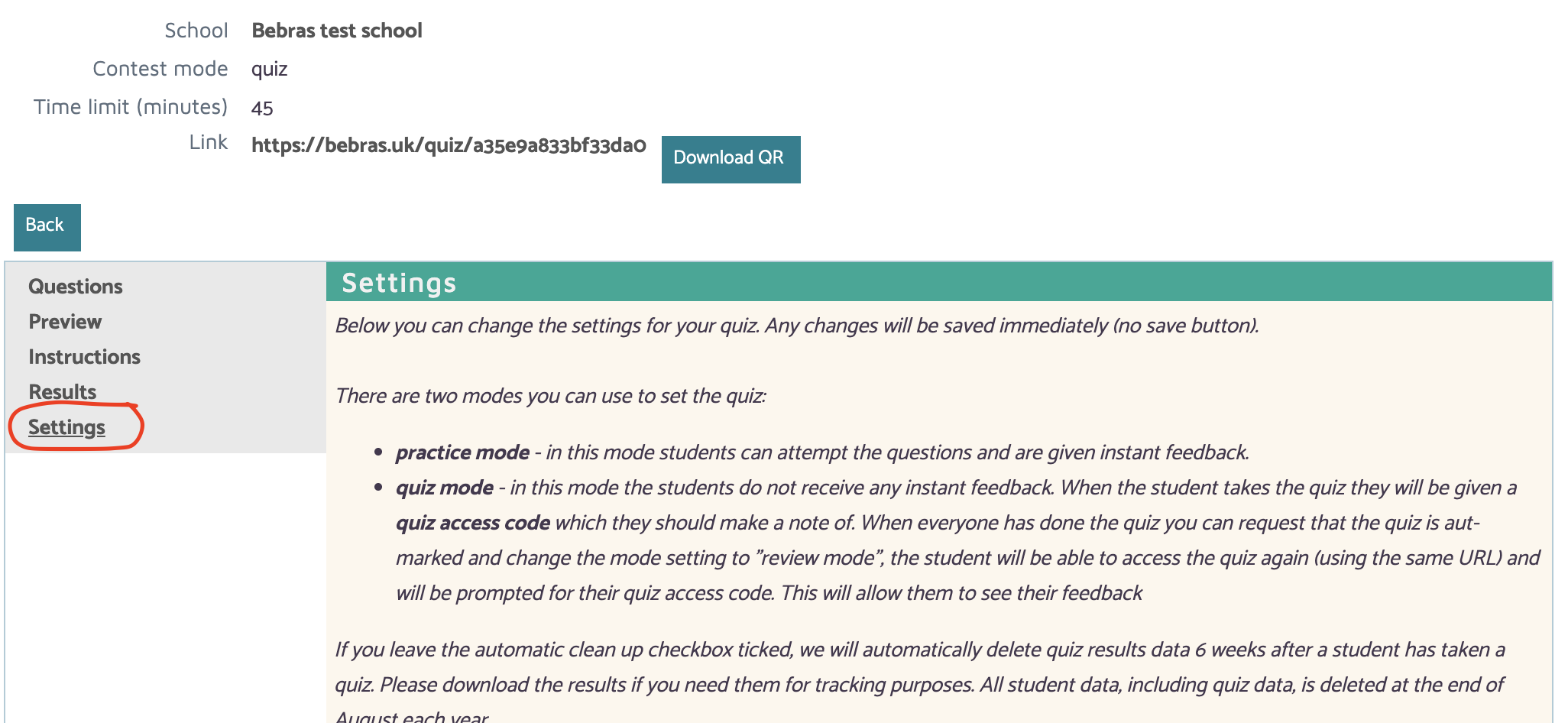
Important information: There is no save button on this screen, settings are applied automatically.
- Name: You can change the name of the quiz here if you wish. Choose something that is meaningful to you and remember that it will be visible to the students.
- Start date / Start time (optional): Here you specify when the quiz goes live. This is useful for setting homework in advance to be done on a particular night. Any student that clicks on the link provided prior to the start date/time will be told that the quiz is not yet available and will display the start and end dates/times that have been set. Dates should be entered in the format dd-mm-yyyy and for times we use a twenty-four hour clock, e.g. 15:30.
- End date / End time (optional): Here you choose when the quiz closes. The time you provide is the last time a student can start the quiz. Format as above.
- Time limit: The quiz will have a live timer that will allow answers to be submitted for the number of minutes you enter in this field.
- Age category: This is the age range relevant to your quiz and may be useful when filtering quizzes from your list in the future.
- Modes:
- Quiz Mode
Use this for formal challenges and assessments. Students complete the quiz without seeing feedback. Once everyone has finished, you can auto-mark the quiz and switch it to Review Mode. Students should make a note of their Personal Quiz Code (PQC).
- Review Mode is available after a Quiz Mode quiz has been auto-marked. It allows students to log back in using their quiz code to view their results, see the correct answers, and try the questions again if they wish.
- Practice Mode
Use this for classroom practice and preparation. Students receive immediate feedback after submitting each answer.
- Shuffle questions: Useful if you have a crowded computer lab and it is easy for students to see each other's screens.
- Show question names: Exactly as it sounds!
- Automatic cleanup: Leave this box ticked if you want us to clear the quiz data after 6 weeks. Otherwise, all quiz data is deleted at the end of August each year.
- Use as template: The quiz will appear in the list of templates for new quizzes.
- Show explanation: Will show information from the answer booklet when the answer is revealed.
- Show relevance to CS: Will show information from the answer booklet when the answer is revealed.
Adding instructions
Use the Instructions tab to add any information or guidance that students should read before starting the quiz.
When you have done this, press Save.
Sharing the quiz with students
At the top of the page, you will see the quiz URL (see image below) and a QR code:
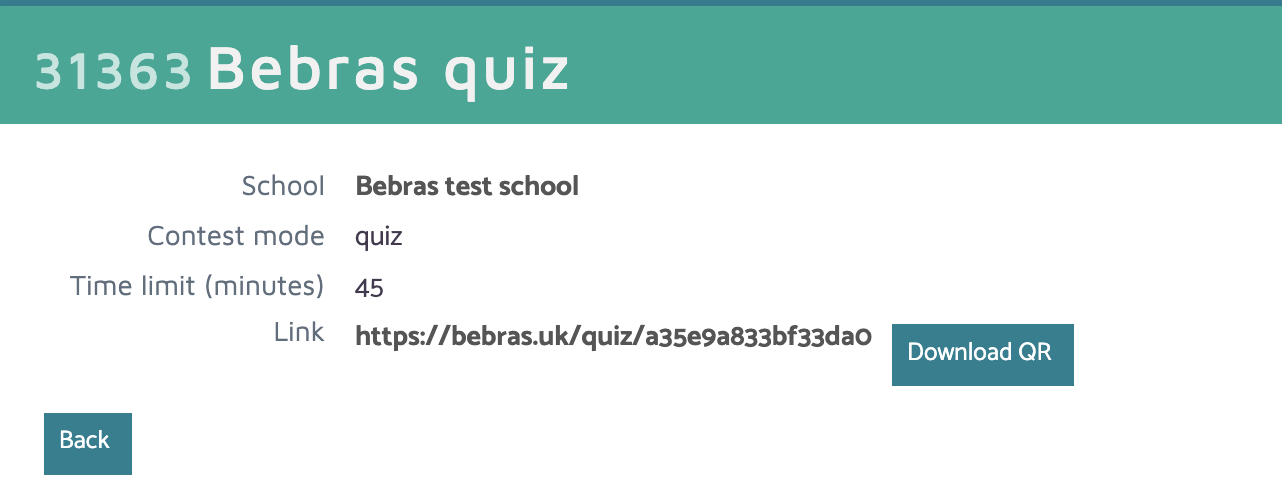
Copy the Link (URL) or QR code provided and give this to your students. You could do this via email or as a hyperlink in a document or on your VLE.
How students access the quiz
When the student uses the link to access the quiz, they will be prompted to enter their name and class.
If the quiz has been set in Quiz Mode, they will be shown a personal quiz code (PQC). Ask them to make a note of this. They can use this code to get into Review Mode.
Important: Students do not need an account to take a quiz. Account details are used only for the official challenge. Instead they are prompted to enter their name and class when they access a quiz. You should encourage them to use their own correct details, especially if you want to be able to track their progress by viewing results.
The quiz will run automatically once the student clicks the Start button. If the quiz has been set in Quiz mode it will end when the student clicks Finish or when the timer ends.
Check quiz participation
From the Quizzes menu, click on the name of the quiz and select the Results tab. You can click the Refresh button if the quiz is still live.
The results page displays the details entered by the student when they started the quiz, which may not always be accurate.
Grading a quiz
From the Quizzes menu, click on the name of the quiz and select the Results tab. Then click Grade quiz. The quiz will be graded and you can then set it into Review mode (see below) if you want students to sign back in to see their results.
Downloading results
Click on the name of the quiz and select the Results tab. Then click the Download results button.
Putting the quiz into review mode
After grading a quiz (and optionally downloading the results) you can allow your students to access their scores by putting the quiz into Review mode. To do this, select the relevant quiz by clicking on its name and then select the Settings tab.
Use the Mode drop-down menu to select Review Mode. You may also edit the start and end date to specify the period you want to keep the Review mode open for. This is important if you intend to set the same quiz to another class at some time.
Student access to review mode
The students use the original link used to do the quiz to locate it again. They will then be asked to provide their personal quiz code, which they were instructed to write down when they took the quiz. If they have lost it, you can find it on the Results page for the quiz.
3.3 Additional resources
There are a number of additional resources available to help schools prepare for and promote the UK Bebras Challenge. These resources are regularly updated and can be found in the Documents menu of the coordinator dashboard.
Available resources include:
- Posters – Promote the challenge around your school.
- Bebras Junior Cards – Unplugged activities featuring Bebras tasks.
- Answer Booklets – Solutions and explanations for previous challenges.
- Presentations – Including guidance and instructions for students on the day of the challenge.
If there are any additional resources you would like us to provide, please contact us at info@bebras.uk.
Return to guide